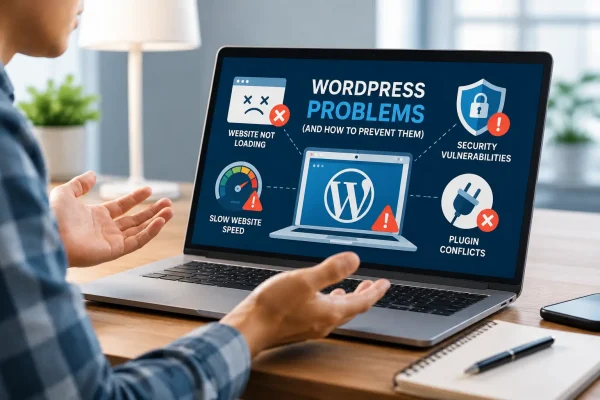
Updating a WordPress website should feel like routine maintenance. In practice, many site owners approach updates with hesitation. One click might close a security gap, but it might also break a layout, disable a form, or interrupt a key business function. For people who do not work with WordPress every day, updates can feel unpredictable and risky.
That anxiety is understandable. Many site owners have experienced an update that caused unexpected problems, sometimes on a site they did not originally build or fully understand. Others manage websites with dozens of plugins and customisations and are never quite sure how all the pieces fit together. As a result, updates are often postponed longer than they should be, increasing long-term risk rather than reducing it.
This guide is designed to remove that stress. It explains how experienced WordPress professionals approach updates in a calm, methodical way, focusing on preparation, sequencing, and recovery rather than technical complexity. The goal is not to turn you into a developer, but to give you a clear, repeatable process you can follow with confidence.
Whether you manage your own business website or oversee WordPress sites for clients, this step-by-step workflow will help you update plugins, themes, and WordPress core safely, understand what can go wrong, and recognize when it makes sense to involve an expert.
Why Keeping WordPress Updated Matters
A WordPress website is made up of three core components: plugins, themes, and the WordPress core software itself. Each serves a different purpose, and each is updated on its own schedule. Together, they form a system that evolves continuously.
Some updates introduce visible changes, but many focus on improvements that users never notice directly. These quieter updates are often the most important.
Security is the primary reason to update
Security vulnerabilities are discovered regularly, not only in WordPress core but also in third-party plugins and themes. Once a vulnerability is publicly disclosed, attackers can quickly automate scans to identify sites that have not yet applied the fix. This makes delayed updates one of the most common causes of WordPress site compromises.
Keeping WordPress components updated does not guarantee that a site will never be attacked, but it dramatically reduces the likelihood. Most attacks exploit weaknesses that already have known fixes. Applying updates promptly closes those doors.
Stability improves with regular maintenance
Software components are designed to work together at specific versions. When plugins, themes, and core drift too far apart, unexpected behavior becomes more likely. This often appears as small issues at first, but can escalate when updates are finally applied.
Regular updates keep all parts of the site aligned, reducing the chance that one change will trigger a chain reaction of problems.
Performance and long-term compatibility benefit
Updates often include performance optimizations, cleaner database queries, and better compatibility with modern PHP versions and browsers. Over time, these incremental improvements help keep sites fast, reliable, and easier to maintain.
Sites that stay reasonably current are also far less likely to encounter serious problems during major WordPress releases.
What Can Go Wrong During Updates, and Why
Most updates install without incident, but problems do occur, particularly on older or more complex sites. Understanding why issues happen makes them easier to prevent and easier to resolve calmly.
Plugin conflicts
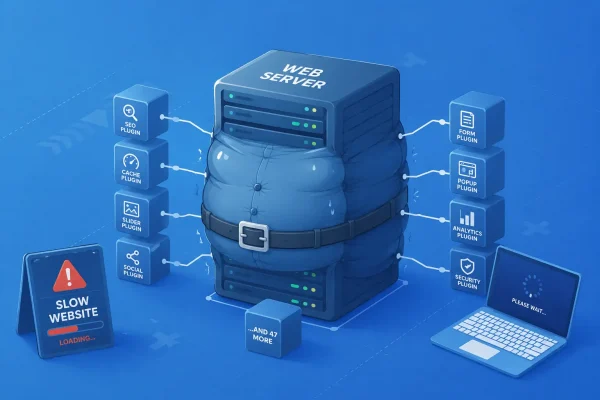
Plugins are developed independently, typically by different providers. An update to one plugin can introduce changes that conflict with another, especially if both interact with similar features, scripts, or data.
The risk increases on sites with many plugins or overlapping functionality.
Theme-related breakage
Themes control layout and presentation. When a theme or a plugin that integrates closely with it changes, layouts can shift, elements may disappear, or styling can break. These issues are not always errors, but they do require review.
WordPress core compatibility issues
WordPress core evolves steadily. Some plugins and themes keep pace closely, while others lag behind. Updating core can expose outdated code that no longer meets current standards, leading to warnings or broken functionality.
Hosting and environment mismatches
Some updates require newer PHP versions or specific server settings. If the hosting environment is outdated, even well-written updates can cause problems.
Interrupted or incomplete updates
Occasionally updates fail partway through due to connectivity or server issues, leaving plugins or themes in a partially updated state. This can cause errors until the update is completed or rolled back.
These risks are real, but manageable with the right process.
A Safe, Practical Process for Updating a WordPress Website
WordPress professionals follow a deliberate sequence when updating sites. The same approach works for non-technical site owners.
Prepare Before Making Any Changes
Before updating anything, it’s important to slow down and prepare properly. Most update-related problems happen not because updates are risky, but because they’re done without backups, checks, or a clear plan. The steps below focus on simple preparation, understanding what you’re updating, and choosing the right moment to make changes, so you can proceed with confidence rather than guesswork.
Create a full backup
Before updating anything, ensure you have a complete backup of your website, including both files and the database. Use whatever system you already trust, whether that is provided by your host, a plugin-based solution, or a backup managed by a developer.
The key is having a clear, repeatable process. You should know that if something goes wrong, you can restore the site to a working state.
Review updates briefly
Take a few minutes to review the available updates.
- Look for notes about major changes or known issues
- Confirm that plugins and themes have been tested with your current WordPress version
- Check that your hosting environment meets basic requirements
If an update looks unusually significant, proceed more cautiously by updating it on its own, reviewing any documented changes from the developer, and checking critical pages and features immediately afterwards before continuing.
Choose a low-risk time
Avoid updating during peak traffic periods, active campaigns, or sales windows. A quieter moment gives you time to respond calmly if something needs attention.
Updating WordPress Plugins Safely
Plugins are the most frequently updated part of a WordPress website. They add features, connect external services, and often handle business-critical tasks such as forms, payments, analytics, and security. Because plugins change often and interact with each other, they are also where most update-related problems occur.
Updating plugins safely is less about speed and more about structure. A simple, repeatable approach keeps risk low and makes issues easier to identify and resolve.
Prepare Properly
Before updating plugins, take a moment to understand what you are dealing with. Review how many plugins need updates and identify which ones are critical to the site’s operation. These typically include plugins related to e-commerce, page building, memberships, multilingual content, or SEO.
Confirm that you have a recent full backup and that you know how to restore it if needed. If any plugin update appears unusually large, introduces new features, or includes breaking changes in its release notes, plan to update that plugin separately rather than alongside others.
Follow the Process
When updating plugins, use a controlled, step-by-step approach:
- Update plugins one at a time, not in bulk
- Start with lower-impact or background plugins
- After each update, check key pages and functions, such as the homepage, forms, and checkout or booking flows
- Leave business-critical plugins until last, when you can focus on testing them properly
This process makes it immediately clear which update caused an issue if something goes wrong and prevents small problems from spreading across the site.
Things to Keep in Mind
Some plugin updates introduce conflicts with other plugins or with the active theme. If an update causes problems, pause further updates, roll back the affected plugin if possible, or restore from backup before continuing.
If a plugin plays a central role in revenue, customer access, or core functionality, and you are unsure about the impact of an update, involving a professional early is often the safest option.
Updating WordPress Themes Safely
Themes control the visual structure and layout of a WordPress website. Because theme updates can affect how pages look and behave, they often feel riskier than plugin updates. That concern is reasonable, but theme updates can be handled safely with the right preparation and review process.
Prepare Properly
Before updating a theme, clarify how it has been customized. If the site uses a child theme, updates to the parent theme are usually safe. If changes were made directly to the main theme files, updates may overwrite those modifications.
Check whether the theme update includes design changes, layout adjustments, or new features. If the site is business-critical or currently supporting active campaigns, choose a time when visual changes can be reviewed carefully without pressure.
Follow the Process
When updating a theme:
- Update the theme on its own, not alongside multiple plugins
- Immediately review key page templates, including the homepage and primary landing pages
- Check navigation menus, headers, footers, and global elements
- Review the site on mobile and tablet devices to ensure layouts still behave as expected
This review ensures that any visual or structural changes are caught quickly and can be addressed before users are affected.
Things to Keep in Mind
Themes often integrate closely with specific plugins, such as page builders or sliders. Updating either side can expose compatibility issues. Reviewing compatibility notes and update order helps reduce surprises.
If a theme update introduces major design changes or restructuring, delaying the update until testing can be done properly is a sensible decision. For heavily customised or high-visibility sites, professional support can prevent unintended visual regressions.
Updating WordPress Core Safely
WordPress core updates affect the entire site. They are essential for security, long-term stability, and compatibility, but they also tend to cause the most concern among site owners. A structured approach makes core updates far less intimidating.
Prepare Properly
Before updating WordPress core, review the current state of the site. Ensure that plugins and themes are reasonably up to date and that none are flagged as incompatible with the target WordPress version.
Confirm that your hosting environment meets recommended requirements, particularly PHP version support. If the site handles transactions, memberships, or multilingual content, plan extra time for testing after the update.
Follow the Process
When applying a core update:
- Take a full backup immediately beforehand
- Apply the core update on its own, not alongside multiple plugin or theme updates
- Once complete, check the site front-end and key administrative functions
- Verify critical workflows such as checkout, logins, or content editing
Separating core updates from other changes makes it easier to identify the source of any issues that arise.
Things to Keep in Mind
Minor core updates focus on security and maintenance and rarely cause issues. Major core updates introduce new features and can expose problems in outdated plugins or themes.
If the site relies on custom code, external integrations, or complex functionality, testing core updates in a staging environment is strongly recommended. For business-critical sites, professional oversight during core updates can significantly reduce risk and recovery time.
What to Do If Something Breaks
Even with careful preparation, problems can occur. When they do, the priority is to stabilize the site and avoid making the situation worse. In most cases, the steps below are enough to regain control.
- Assess the impact
Identify what is affected and how widely. Check whether the issue is visual, functional, or site-wide, and confirm which pages or features are involved. - Roll back or restore
If a specific plugin or theme update caused the issue, roll back to the previous version if possible. If not, restore your most recent backup to return the site to a known working state. - Disable the affected component
If rollback is not immediately possible, temporarily disable the problematic plugin or theme to stabilize the site while you investigate further. - Check for known issues
Review changelogs, support forums, or official documentation to see whether the problem is already known and whether a fix or follow-up update is available.
Recovering From More Serious Problems
Sometimes updates reveal deeper issues.
Restore the entire site
If the site becomes inaccessible or multiple features fail, restoring a full backup is often the fastest solution.
Use staging environments moving forward
Repeated update issues suggest a need for testing environments. Staging allows updates to be reviewed safely before affecting live users.
Involve a professional early
Extended downtime or repeated errors can create secondary problems. Experienced WordPress specialists can resolve update-related issues efficiently.
When to Leave Updates to the Experts
Professional support is recommended when:
- the site is revenue-critical
- custom code or advanced integrations are involved
- updates frequently cause issues
- there is limited time for testing
- a major WordPress core update is approaching
Maintenance services remove uncertainty and reduce operational risk.
Building a Sustainable Update Routine
Safe updates are about consistency, not urgency.
- Review updates weekly or biweekly
- Remove unused plugins and themes
- Keep hosting environments current
- Pay attention to major release announcements
A steady approach keeps WordPress sites secure and manageable.
Conclusion
Updating a WordPress website does not need to be stressful. With preparation, a clear process, and realistic expectations, most updates can be handled safely. When complexity increases, professional support provides reassurance and stability.
The goal is not to update constantly, but to update confidently, keeping your website secure, functional, and ready to support your business.
WP Flex is our WordPress support service.It helps organizations keep their WordPress websites secure, reliable, and easy to manage. If your team could use expert help with updates, ongoing maintenance, or troubleshooting, feel free to get in touch.